Choose photos for your Hop Hop Hop dance
Prepare full-character references for A or A+B and send photos from your phone.
The Hop Hop Hop Dance photo form lets you select and preview portraits before generating with your account credits. Choose photos you have permission to use. Everyone pictured must be an adult who has agreed to appear.
One photo or two?
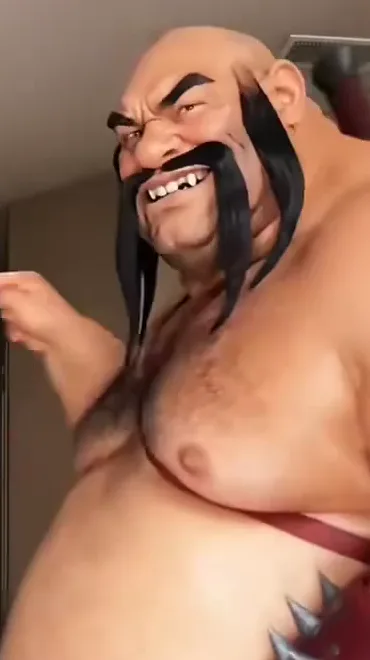
Replace A only: image 1 replaces the large character in the front right at the start of the clip; the original blond character B in the back left is preserved. Replace A + B: image 1 maps to A and image 2 maps to B. Both images are required; roles never swap.
Changing the input mode does not automatically separate people from a group photo. A clear portrait of one person works best for each slot.
A useful photo checklist
- Face the camera in even light, with the face in focus.
- Show the full character’s body proportions, hair and outfit; the goal is a whole-character replacement, not just a face swap.
- Avoid heavy filters, sunglasses, covered faces and distant crowds.
- Use your own photo or a photo of an adult who has agreed to participate.
These are preparation tips, not a guarantee of a generated result. The current form previews the original photos you select.
File types and sizes
Use JPEG, PNG or WebP, up to 10 MiB per photo. The upload service also has a 50 MiB total limit. If your phone uses another image format, export a JPEG or PNG before selecting it.
Send a photo from your phone
- On the computer, open the phone-upload option for the photo slot you want to fill.
- Scan the QR code with your phone. Both devices must be able to reach the site.
- Select a photo from your library or use the camera, then review the preview.
- Confirm permission and send the photo to your computer.
- Check the thumbnail in the matching slot. Replace or remove it if needed.
A pairing accepts one photo and expires after five minutes. Keep the pairing code private. Open a new code if it expires or you need another transfer.
Selecting a photo on the computer creates a browser preview. Sending one from a phone uses the site's temporary transfer service. Neither action starts a video render or a payment.
What happens next?
Sign in, purchase video credits and submit your photos. One credit makes one video. The generator uses Kie Seedance 2 Mini and sends the chosen images and original video together and requests a silent five-second 9:16 video, preserving the original cut around 4.4 seconds and the subsequent position change. B comes to the foreground and A is in the background; identities remain fixed. The server automatically restores the original soundtrack before offering the finished video for playback and download. Audio processing can be retried without generating another video. Confirmed upload or provider-generation failures return the reserved account credit. Audio processing can be retried at no extra cost. If submission cannot be confirmed, the credit stays reserved; contact support with the task ID before trying a new generation. Administrator tests are a separate permission-protected option. Kie documents that uploaded references expire after 24 hours. The five-second cartoon clip is a supplied demonstration, not a result made from your uploaded photos.
Read how generation works, return to the photo form, or check the public AI reference.